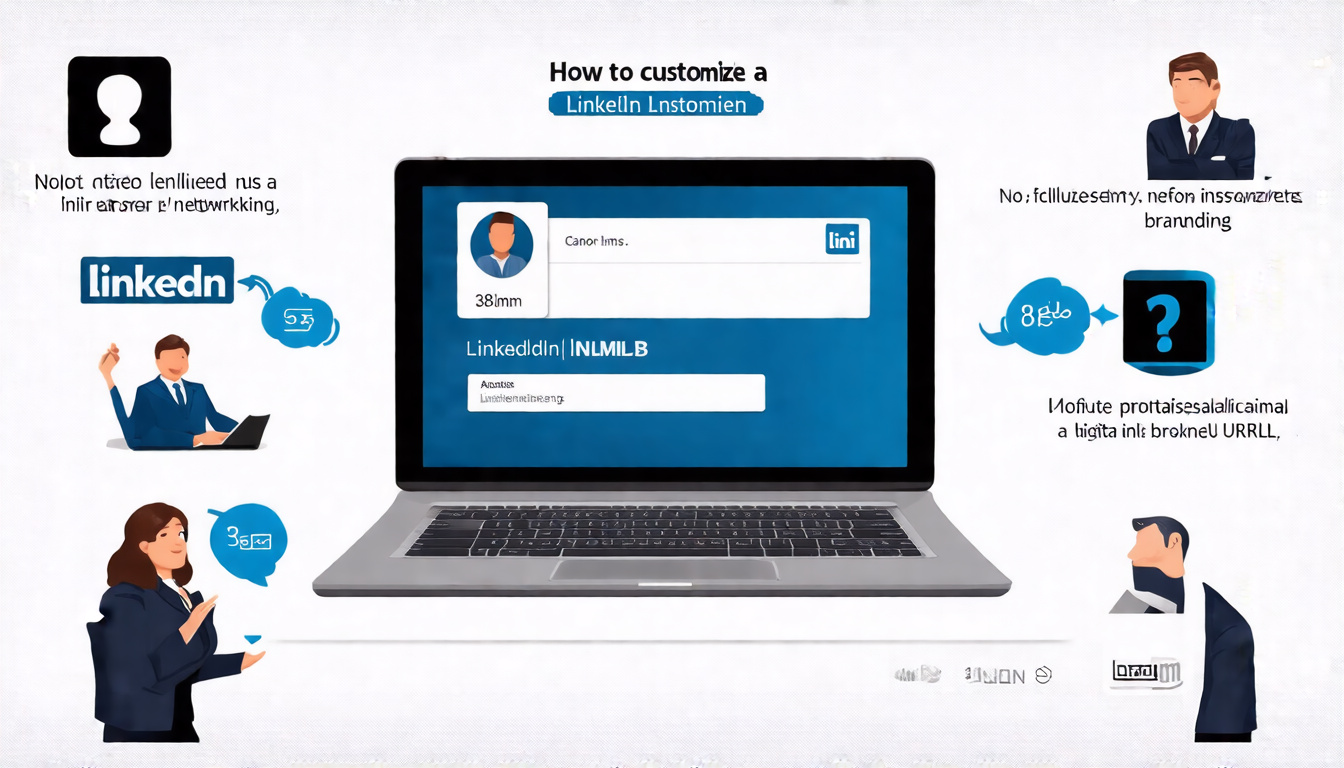
Your LinkedIn profile holds the key to your professional online identity. One aspect many overlook is the LinkedIn URL. By default, LinkedIn assigns a long string of random numbers and letters to your profile URL. While this default URL works, it looks messy and unprofessional. A clean, custom LinkedIn URL is simple to create and elevates your profile’s presentation. Here’s a straightforward, step-by-step guide to help you transform your LinkedIn presence by crafting a custom URL in just a few minutes.
Check Your Current LinkedIn URL
Start by opening your LinkedIn profile. Look at the top of your browser where your profile URL appears. Does it look like a jumble of random characters? If yes, you can fix it. If your URL already looks neat and professional, stay with me anyway. You may learn something new.
For example, a default URL might read something like “linkedin.com/in/john-doe-1234abc”. That string of numbers and letters at the end doesn’t add value. Instead, a custom URL like “linkedin.com/in/johndoe” looks clean and polished.
Accessing the Custom URL Settings
To begin customizing your URL, locate the “Edit public profile & URL” option. You’ll find this at the top right corner of your LinkedIn profile page. Click on it. This will take you to the public profile settings.
On the right side of this settings page, find the section labeled “Edit your custom URL.” Here is where you can put your personal touch on your URL.
Choosing Your Custom URL
Clicking on the “Edit your custom URL” link opens a text box where you can type your desired URL suffix. The best practice is to keep it simple. Ideally, choose your full name. For example, if your name is Lucy Gilmore, try “lucygilmore”.
Sometimes, your first choice is already taken. In that case, add a middle initial, your job title, or a term related to your industry to stand out. For instance, if many Lucy Gilmores exist, you might use “lucy-gilmore-dcarecoach”.
Avoid nicknames, humor, emojis, or anything that looks unprofessional. Your LinkedIn URL acts like a business card address. Keep it clear, concise, and relevant.
Saving and Testing Your URL
After you finalize your choice, save your changes. Then, test the new URL by typing it into a new browser tab. Your profile should load instantly. If it does, congrats—you now have a cleaner, memorable LinkedIn URL.
Tips for a Polished URL
- Use your full name or a close variation to maintain professionalism.
- If your name is common, add your role or field. This improves uniqueness and clarifies your expertise.
- Avoid using random numbers or symbols. Those can confuse potential contacts.
- Double-check spelling. A single typo can lead to a broken link and lost opportunities.
Why This Matters
You might wonder if customizing your LinkedIn URL truly matters. While it seems like a small detail, it creates a lasting impact. A neat URL is easy to share in resumes, email signatures, or networking messages. It shows that you pay attention to your professional brand.
Having a custom URL boosts your profile’s credibility. It reflects care and professionalism. Together with a complete, well-crafted profile, your URL can help you attract recruiters, connections, and career opportunities.
Avoid These Common Mistakes
- Don’t get too creative or use jokes. This space is not for nicknames or humor.
- Random numbers or symbols look unprofessional. Replace them with meaningful text.
- Always proofread your URL for typos before saving.
- If your preferred URL is taken, think like a marketer. Add keywords related to your job or industry.
Bonus: Make Sharing Easier
Once you have a clean custom URL, add it to your email signature and resumes. It will look polished and make it easy for others to find you. If you network frequently, a memorable URL helps people remember you.
Final Thoughts
In just a few clicks, you can significantly improve your LinkedIn presence by customizing your URL. It takes little time but leaves a strong impression. Your LinkedIn URL becomes an essential part of your professional brand.
Try it today. Open your profile, follow these simple steps, and transform a cluttered link into a sleek, professional address. You will find it easier to share your profile and make connections.
This small change shows attention to detail and helps you stand out in the professional world.